Grabbing

Point at it and click.

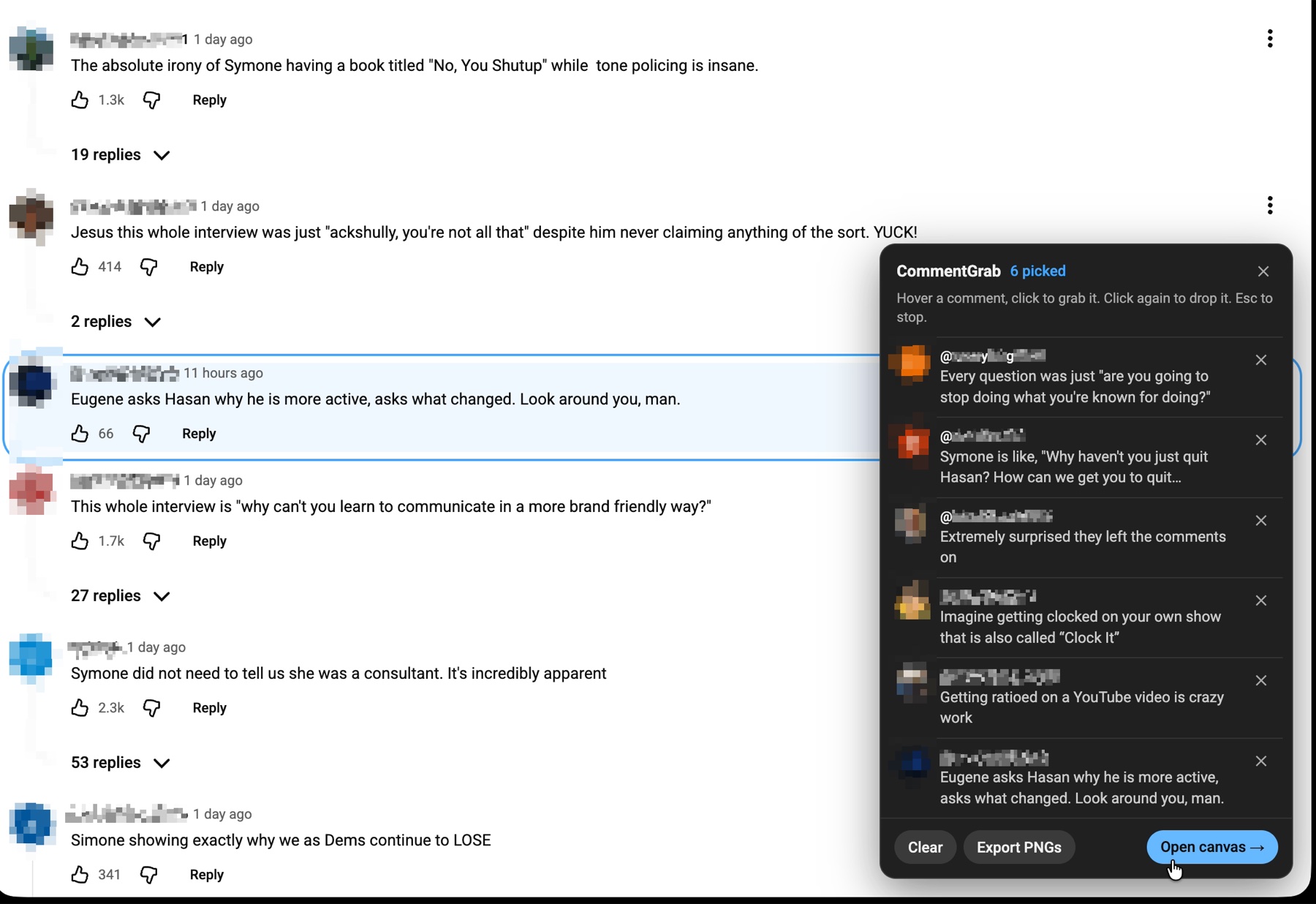
Open a video, click the CommentGrab icon (or press Alt/Option+Shift+C) and a small panel appears. Hover a comment and it gets an outline; click and it is cut out and flies into the panel. Click it again to drop it. Replies work too.

What is kept is the comment itself: the name, the text, the likes, how long ago, the profile picture, and which video it came from. Not a picture of it.

YouTube comments with one outlined in blue under the pointer. On the right the CommentGrab panel, headed '6 picked', lists the picked comments with their text, and has Clear, Export PNGs and Open canvas buttons along the bottom. Names and profile pictures are blurred.
Hover, click, grabbed. The panel keeps the list.

Canvas

Put them where you want them.

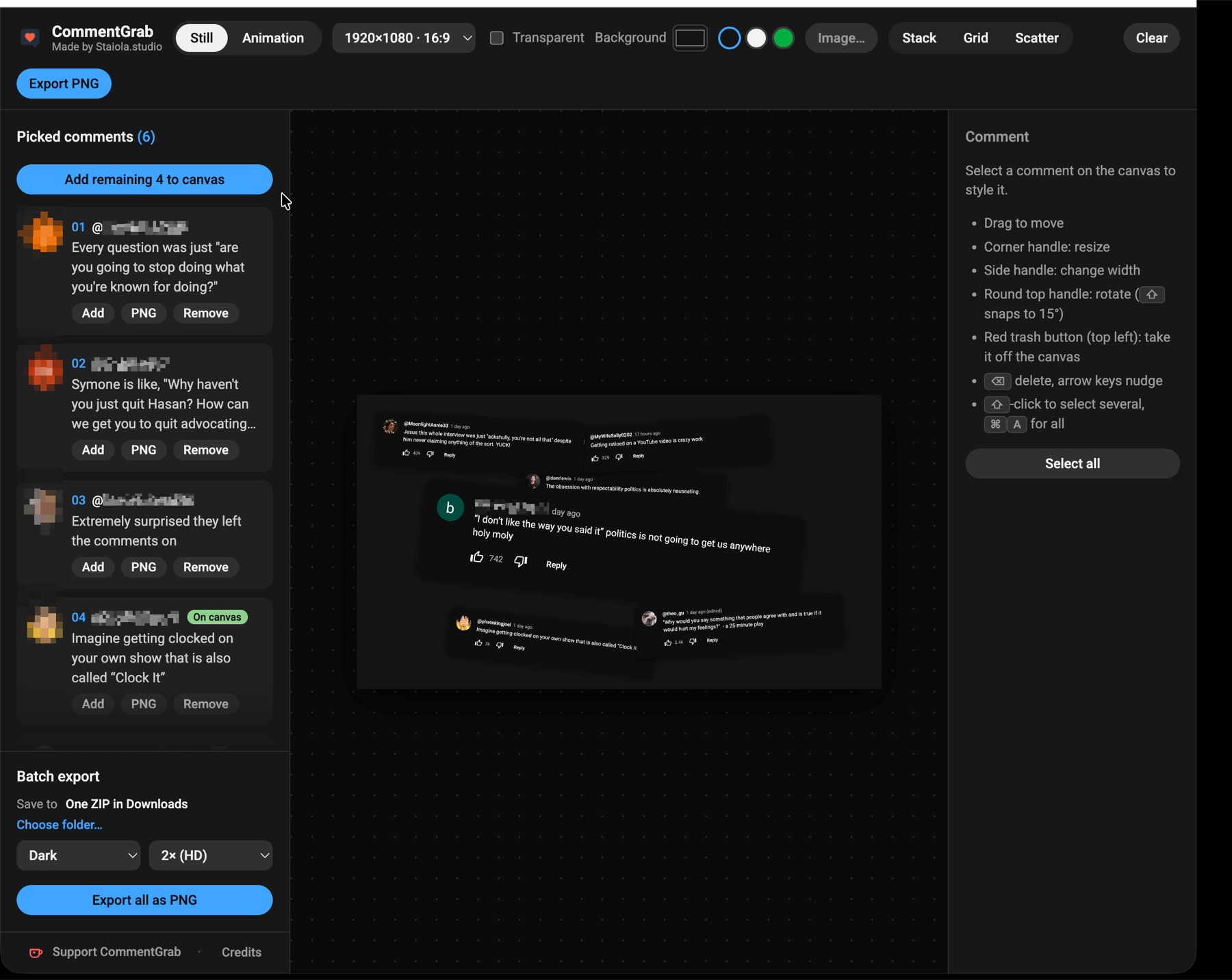
The canvas is where comments become a picture. Add them one at a time or all at once, drag them into place, resize, rotate, switch between dark and light. Every comment has a number, 01, 02, 03, and the same number follows it everywhere: in the list, on the timeline and in the file names.

The CommentGrab canvas editor. Picked comments listed on the left with Add, PNG and Remove buttons, a 16:9 canvas in the middle with six comments scattered at slight angles, and editing tips on the right. Along the top: Still and Animation, the canvas size, background choices, and Stack, Grid and Scatter.
Scatter: a slight tilt each, and as little overlap as it can find.

Animation

Animate the comments.

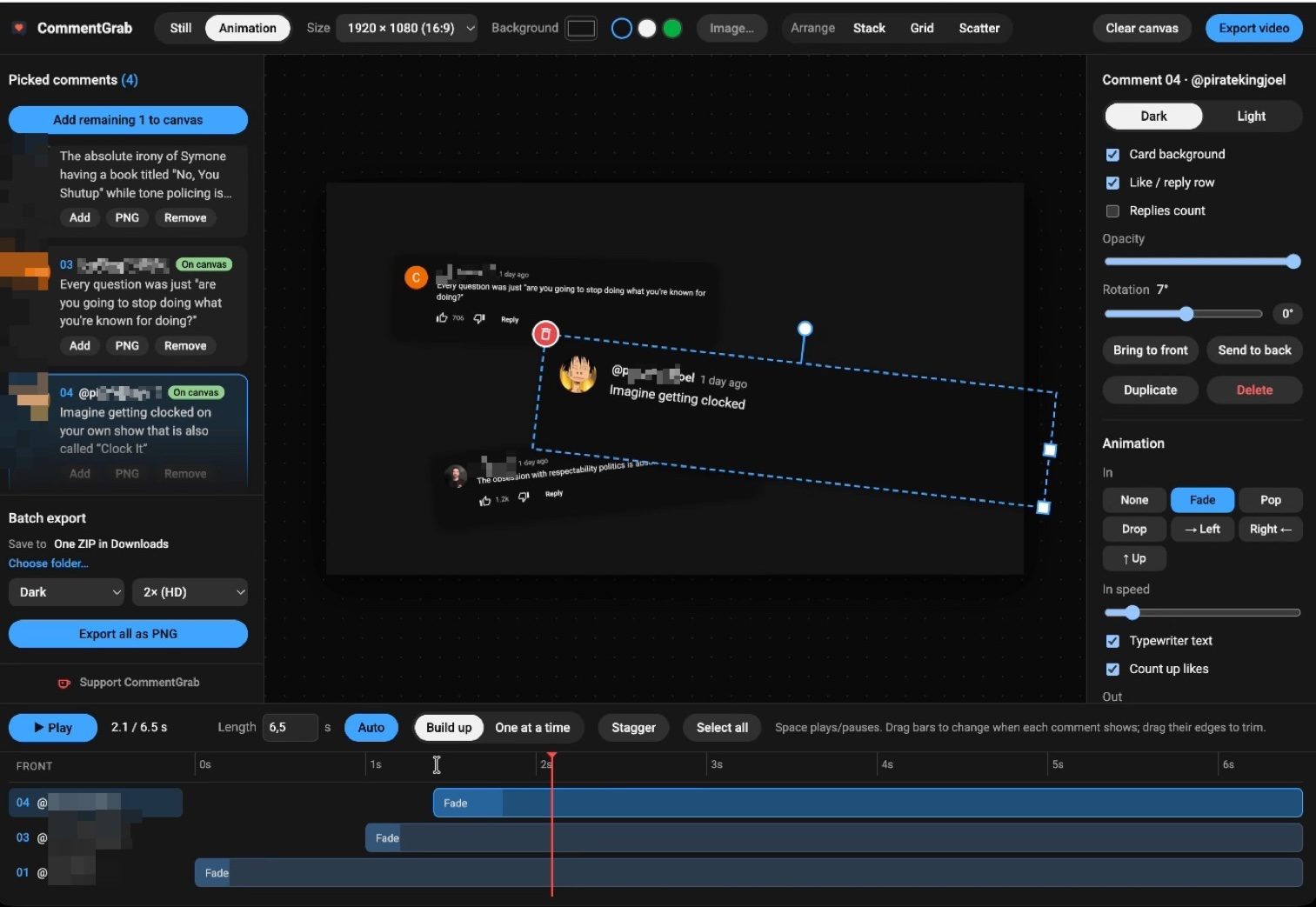
Switch to Animation and the same layout gets a timeline. Each comment pops, fades, slides or drops into the place you gave it, and its likes count up from zero. The timing follows reading time: a short comment gets less time than a long one, never more than two seconds before the next arrives, and the video ends two seconds after the last one lands.

CommentGrab in Animation mode. The canvas shows three comments, one selected and rotated. The right-hand panel sets its style and animation, with Fade chosen and Typewriter text and Count up likes ticked. Along the bottom a timeline with one row per comment and a red playhead at two seconds.
One row per comment, front to back. Drag a bar to move it in time..
Á

Exporting

One file, or one per comment.

Export the canvas as a PNG or a video. Or export every picked comment as its own transparent PNG, into a folder you choose once, or as one ZIP.

What is kept

Everything stays on your computer.

What does go over the internet: the profile pictures, fetched from YouTube's own image servers, and the Roboto font, loaded from Google Fonts. The full version is in the privacy policy.

Under the hood

A Chrome extension and a canvas.

A content script on YouTube reads the comment you click, and only that one. Comments are drawn again from their text with the 2D canvas in the same typeface YouTube uses, which is why they scale cleanly and why the likes can count and the text can type. Video is the canvas recorded with MediaRecorder. Batch PNGs are drawn in an offscreen document and written to a folder with the File System Access API, or packed into a ZIP.

Built with

Chrome Extensions (Manifest V3) Canvas 2D MediaRecorder File System Access API Vanilla JS Claude Code

Try it

Version 1.0, free.

Where it works

Works in Chrome on a computer. Not on phones, and not on YouTube's mobile site.

If it saves you time: support CommentGrab on Ko-fi.