What it finds

Bounces, not everything that is audio.

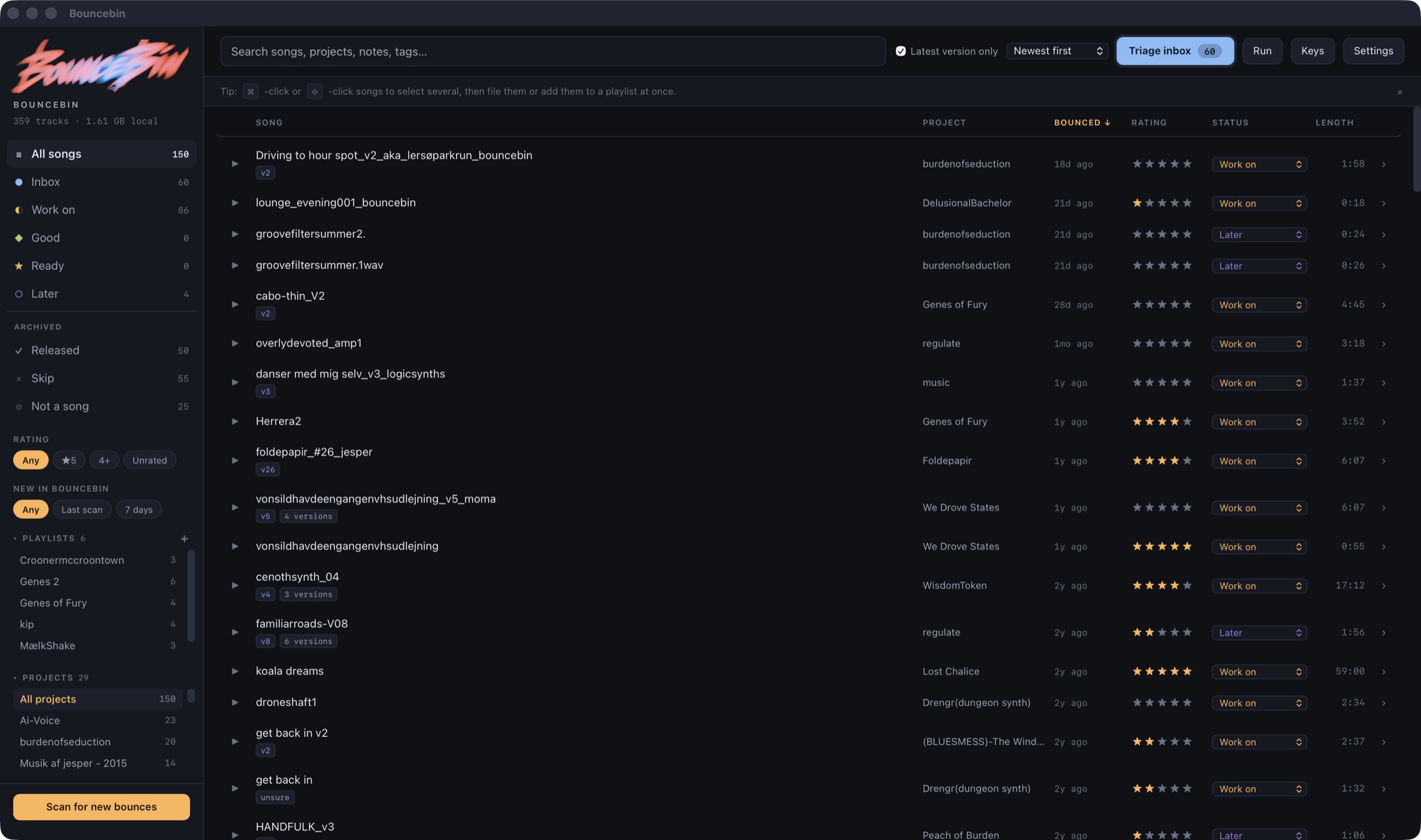
Point it at the folders you keep projects in and it looks through them, however deep. The hard part was never finding audio files — there are thousands. It is telling a finished song apart from a stem, a sample, a voice memo and a render of one instrument, so that what you end up listening to is your music rather than the parts it was made of. It goes by where a file sits and what it is called: a folder named Bounce or Mixdown is a good sign, one named Stems is not, and a file sitting beside a project is probably a mixdown of it.

It reads only. Nothing in your music folders is moved, renamed or deleted, by this app, ever.

What it keeps

A copy that is actually there.

Music folders tend to live in iCloud Drive, and iCloud removes the local copy of files you have not touched when the disk gets tight. The file appears to be there and will not play. Bouncebin copies every bounce it accepts into a library of its own, outside the app, where nothing is going to evict it.

Large lossless bounces are converted to MP3 on the way in, because a five-minute WAV is around 50 MB against 7, and a library of them stops being something you can keep. If you would rather have the files exactly as you rendered them, one switch turns that off. Either way the original is untouched — and if pulling a file out of iCloud was what made it local, Bouncebin puts it back as it found it.

Sorting

Six piles and a keyboard.

Everything new lands in the inbox. From there it goes into Work on, Good, Ready, Later, Released or Skip — plus Not a song, for the stems and tests that got through. Rate out of five, write yourself a note while you remember why, and tag it.

Triage plays the inbox one track after another so you can go through a backlog without touching the mouse. J and L move, K and space play and pause, 1 to 5 rate, and the status keys file it and move you on. Press ? for the rest.

Making an album

From a pile of renders to a record.

Rating is only half of it. Once you know which tracks are worth keeping, the question is what they are together — and that is a different job, done by putting them in an order and listening to the joins. Collect any bounces into a playlist, drag them into the running order you want, and give it a cover, front and back. Play it from the top and hear it as a record rather than as a folder. When it is right, Bouncebin can gather the full-quality files behind the running order into one folder, ready to hand on.

The same playlist as a running order, then as a record: press Put it on the table and the camera turns before the sleeve drops in and slides to a stop.

And then you can look at it as a thing rather than a list: a twelve-inch sleeve or a CD jewel case you drag to turn over, lay on a table, or seal in shrink wrap. It is the most frivolous part of the app and makes no claim otherwise — but a record you can hold is a different proposition from a list of filenames, and it is a good way to find out whether what you have is actually a record.

Limits

What it does not do.

Download

Version 1.2.0, free.

Installing

Open the disk image and drag Bouncebin to Applications. It is signed with a Developer ID certificate, notarised by Apple and stapled, so it opens without a Gatekeeper warning even on a machine that is offline.

Needs macOS 13 or later. Universal for Apple silicon and Intel. The download is 50.0 MB, most of which is a copy of Python the app carries so that there is nothing to install alongside it — no Homebrew, no FFmpeg. If FFmpeg happens to be on the machine it will use it for conversions; if not, macOS's own encoder does the job.

On first run it asks which folders to look in, and suggests ones that exist on your Mac. Your ratings, notes and the copied audio live in Application Support, outside the app, so updating or reinstalling never touches them. From 1.0.2 onwards updates arrive through Bouncebin › Check for Updates. If something is wrong, tell me.

What is in the 3D view

The record sleeve, the printed cards and the laminate are drawn by the app. The jewel case is CD + Jewel Case by blue man group, used under CC BY 4.0, and three.js is MIT.